1. Windows cannot find "javaw"
Possible causes and potential solutions:
-
You don't have any java version installed on your PC. Go to #Windows page, download and install Java 17.
-
After installing the java program, your java path didn't update. Try to reinstall Java 17 or our runtimes.
⚠️ While installing the runtime, remember to DO NOT close the Windows Command Prompt popups and patiently wait till the installation process is done. Otherwise your java path will never update!
If it didn't solve the problem, here is a solution:
-
Step #1
- Search Advanced System Settings
- Click on Environment Variables...
-
Step #2
- Go to System Variables
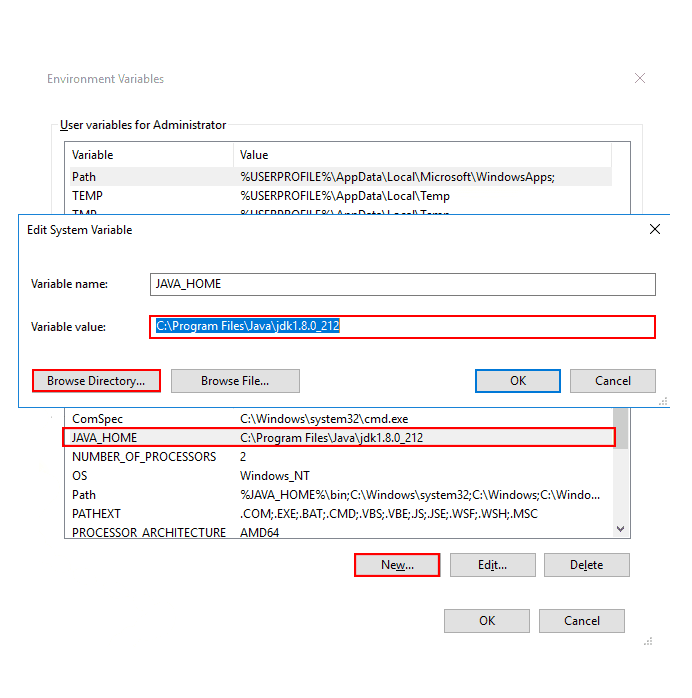
- Click on New...
- Variable name: JAVA_HOME
- Variable value: C:\Program Files\Java\jdk1.8.0_XXX (replace the X's with your JDK version. Example: jdk1.8.0_201) or you can browser for directory of the file.
- Make sure its the JDK not JRE
- Click OK
-
Step #3
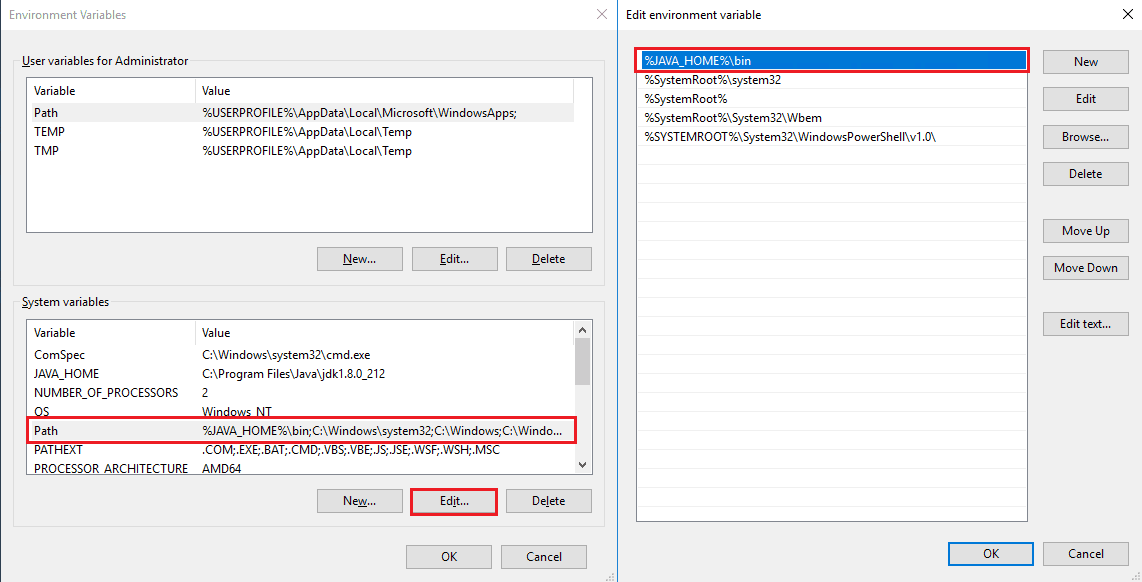
- Look for Path and Double-Click on it or Select and Press Edit
- Delete all Java Paths (Like C:\Program Files (x86)\Common Files\Oracle\Java\javapath)
- Click on New...
- Write %JAVA_HOME%\bin
- Click OK
2. Unable to access jar file DarkBot.jar
Possible causes and solutions:
- There is no file named DarkBot.jar in your bot folder, for example, because you renamed this file to DarkBot_1.jar
- You don't have any java version installed on PC / There is a problem with your java path.
- The same solution as for the Windows cannot find javaw error - scroll up.
- Try to use RunBot.bat
Do NOT run RunBot.bat with Admin privileges!
3. DarkBot.jar is opening as a folder, archieve or in other APP
Possible solution:
- Right click DarkBot.jar
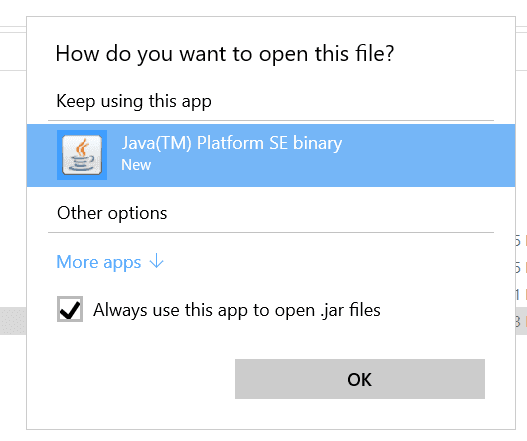
- Click "Open with"
- Tick "Java TM" and "Always use this app for .jar files"
- Click "OK"
- Double click DarkBot.jar

4. Native library (com/sun/jna/win32-x86/jnidispatch.dll) not found in resource path [...]
Reason: You have a 32-bit java version installed on your PC (a 64-bit version is required to run the bot). Solution: Follow the instructions below:
- Click menu start and type appwiz.cpl
- Locate a 32-bit java version and uninstall it from your PC
- If you have already installed our runtime, go to the step 4. If not, go to #Windows page and download it.
- Double click on the RunBot.bat file and check if it works now.
⚠️ If you have done all the steps and you get a Windows cannot find javaw error, try to install the runtime again (it will fix your java path). After installation, try to run the bot.
5. Cannot authorize my discord account
Error message: 127.0.0.1 refused to connect. Reasons and solutions:
- You are closing the popup window from the bot (a dark grey window that pops out just after running the bot) during the authorization process. DO NOT close it, since you will always get the mentioned error.
- The browser you are currently using is not able to load the page. Set default browser to chrome - there you should authorize the bot seamlessly.
- You are using a very aggressive AntiVirus that doesn't allow you to pass the authorization process - try to disable it for a moment.
6. Bot closes after login [FIX]
-
Download and run the following file: https://darkbot.eu/downloads/FlashFix.bat (opens in a new tab)
-
Alternative Method - ONLY IF FIRST FAILS https://darkbot.eu/downloads/flashcn_flashpatch.zip (opens in a new tab)
7. Cannot login to the game - refreshing the login page or redirecting to the logout page just after clicking the login button.
Cause: security restrictions doesn't allow to set cookies in the browser, which are needed to access the backpage and run the game.
Solution: for any Windows Server OS:
- Open the Server Manager tab
- Navigate to Local Server
- Find and disable IE Enhanced Security Configuration
- Close all windows and check if you can log in to the game. ⚠️ Remember to restart the bot to apply changes!
⬇️ If for some reasons you are not able to turn it off, follow the further steps.
Solution: for all operating systems:
- click menu start, type inetcpl.cpl and hit enter
- go to security, click trusted sites and add *.darkorbit.com to trusted sites
- close all windows and now, try to log in to the game ⚠️ Remember to restart the bot to apply changes!
If it doesn't help and you are still facing the same issue, try to decrease the security level for the internet zone (inetcpl.cpl => security -> internet, set it to medium or low).
8. The API you had selected is not able to load
❌ Error message: The API you had selected is not able to load. You probably do not have the required DLL in your lib folder. Possible causes and solutions:
-
You have a 32-bit java version installed on your PC - reinstall Java or our Runtimes.
-
Your absolute (full) path to the DarkBot.jar file contains one or more national characters (such as ğ, Ş ı etc.) which cannot be recognized properly and are converted to question marks. For example: The following path: C:\users\kullanıcı\Desktop\Darkbot\lib Will be converted to: C:\users\kullan?c?\Desktop\Darkbot\lib
🔹 So, the converted path is pointing to an invalid location, where the required .dll file cannot be found and that's the reason of this error.
Solution: Get rid of all national characters from your path by changing the name of all directories where they occur. If the actual name of the user on your computer contains mentioned characters (like in the example above) and you don't want to bother with renaming it, you can simply move the bot folder to any partition (For example to disk C:) and run it there.
- The bot is loading the game forever after refresh
Solution: Clear cache and restart bot.
9. Failed to load config
This happens if you try to run the bot with Java 8. If are not donor, follow the instructions below.
- Click Menu Start, type appwiz.cpl and hit Enter
- Search for Java 8 and uninstall it
- Download and install our runtime: https://darkbot.eu/downloads/Runtimes4DarkBot.exe (opens in a new tab), then run the bot again.