How to install & run DarkBot in Windows?
1. Installing required apps
- Download and install our runtime: https://darkbot.eu/downloads/Runtimes4DarkBot.exe (opens in a new tab) (run it with admin privileges)
Runtimes4DarkBot installing Java 11 and vc++ 2015-2019.
If you get this error: "Error Code: 1638 (0x00000666)", then it means that the program is already installed.
- You can install it manually:
https://aka.ms/vs/17/release/vc_redist.x64.exe (opens in a new tab) - Visual Studio 2015-2022
https://download.oracle.com/java/17/latest/jdk-17_windows-x64_bin.exe (opens in a new tab) - Java 17
Bot only works if you have Java 11 or 17. If you have Java 8 or other version, please delete it.
2. Installing DarkBot.jar
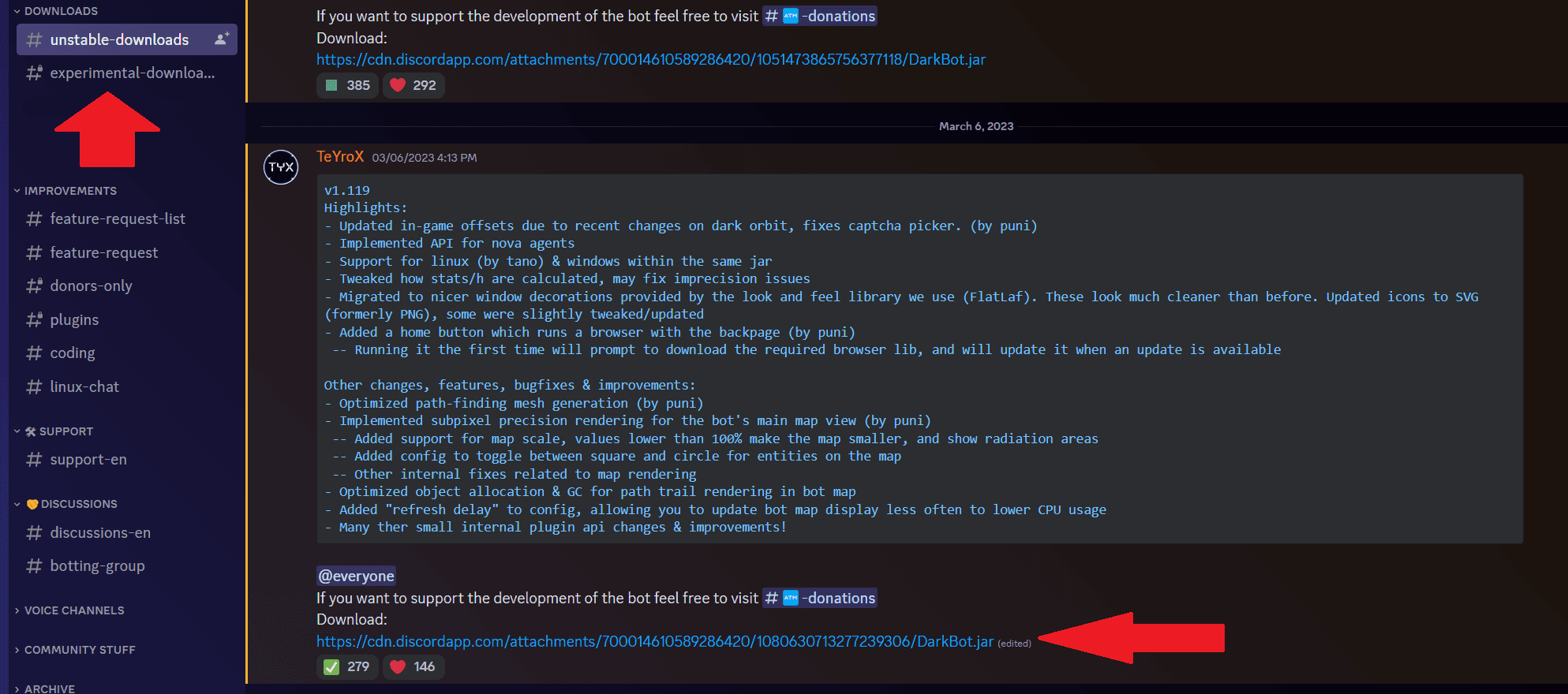
- If you are Donor: Go to #experimental-downloads and download the latest bot version.
- If you are not Donor: Go to #unstable-downloads and download the latest bot version.
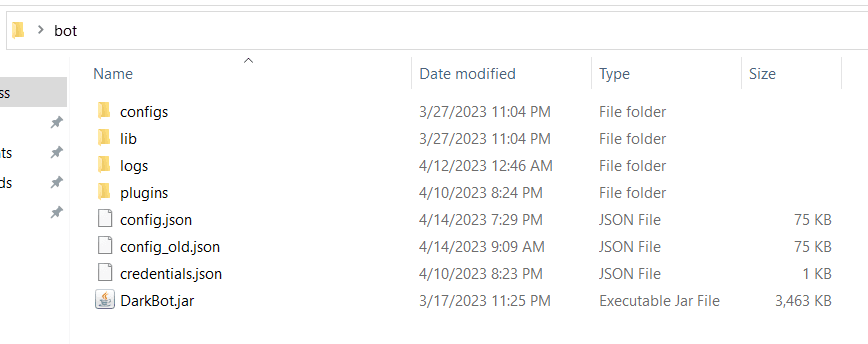
- Put the downloaded DarkBot.jar file in your bot folder. All files will be created when you run DarkBot.jar
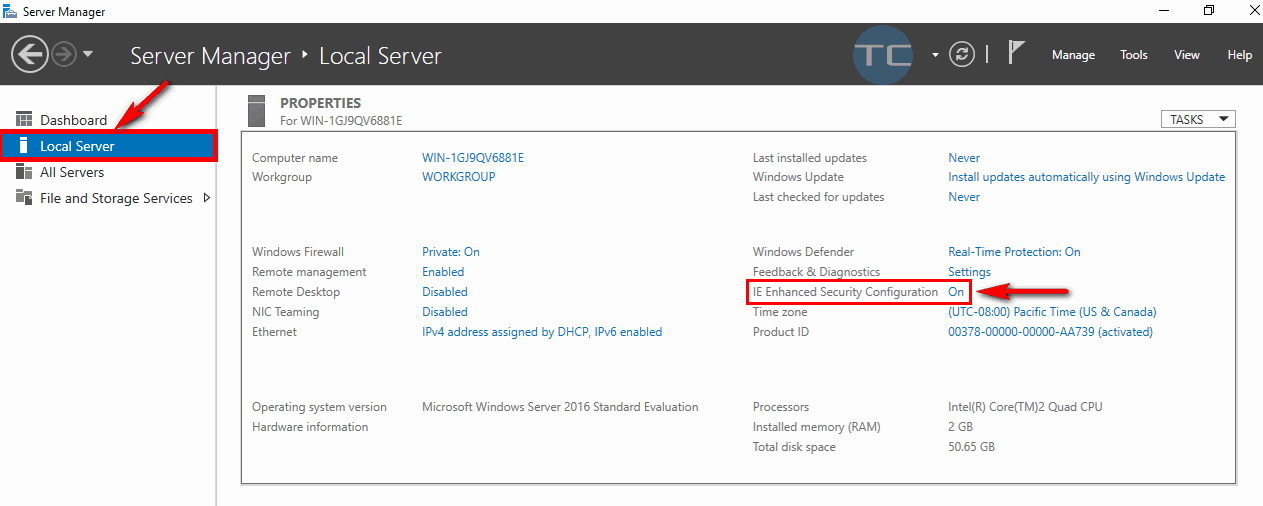
- Same actions if you are using VPS but you also must disable IE security settings
3. First run
Run the darkbot by double clicking the Darkbot.jar file. When you do, this verification window will appear:
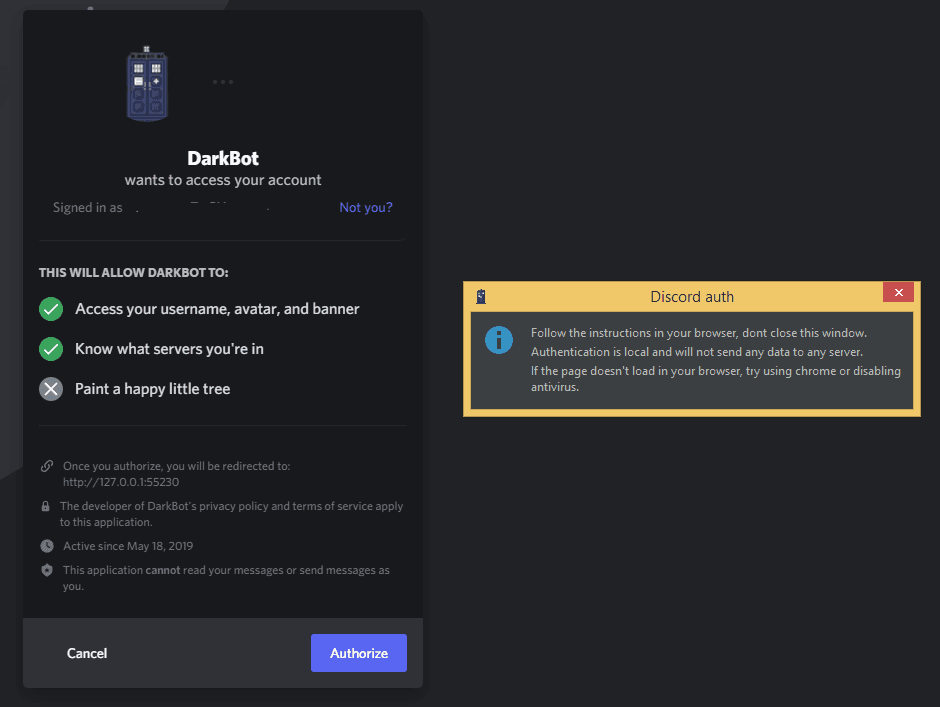
❌ DO NOT CLOSE THIS WINDOW (Discord Auth) ❌
This Discord authentication verifies on which discord servers you are, if you are on a server that is on the bot's blacklist, you will not be able to use it. Also checks the role you have on our discord server. Click on authorize to complete the Authorization.
If we get this page then it means we have been able to authenticate ourselves successfully. Now log in to the bot.

4. Log in
When executing the bot, this window will appear to put our account data.
1. User & pass
Here you should fill your username & password of your DarkOrbit account.

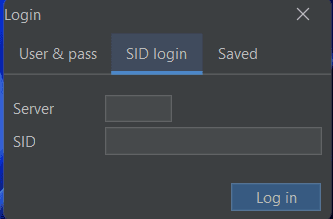
2. SID login
Here you should use SID and server.
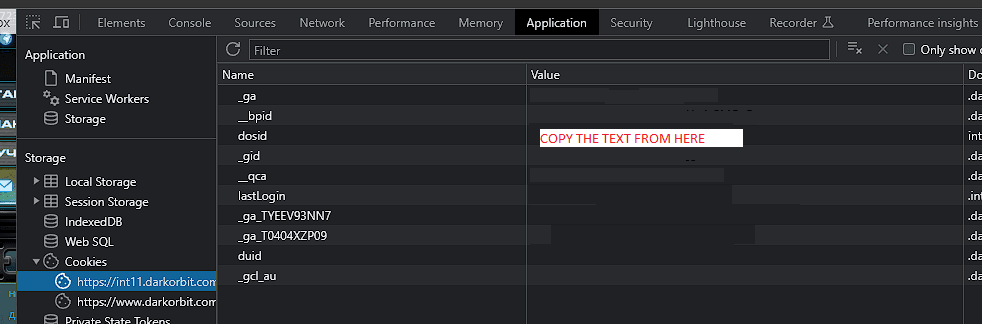
How to find SID and server?
- Login into your account via any browser and press F12
- This will open a menu on the right side of your browser
- Head to Applications > Cookies > And then copy the text from dosid
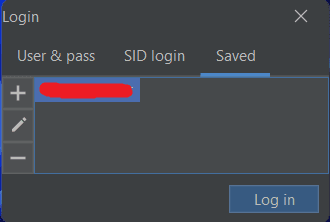
3. Saved
Here we can add and save our username & password, so no need to fill it everytime.
5. In-game configuration
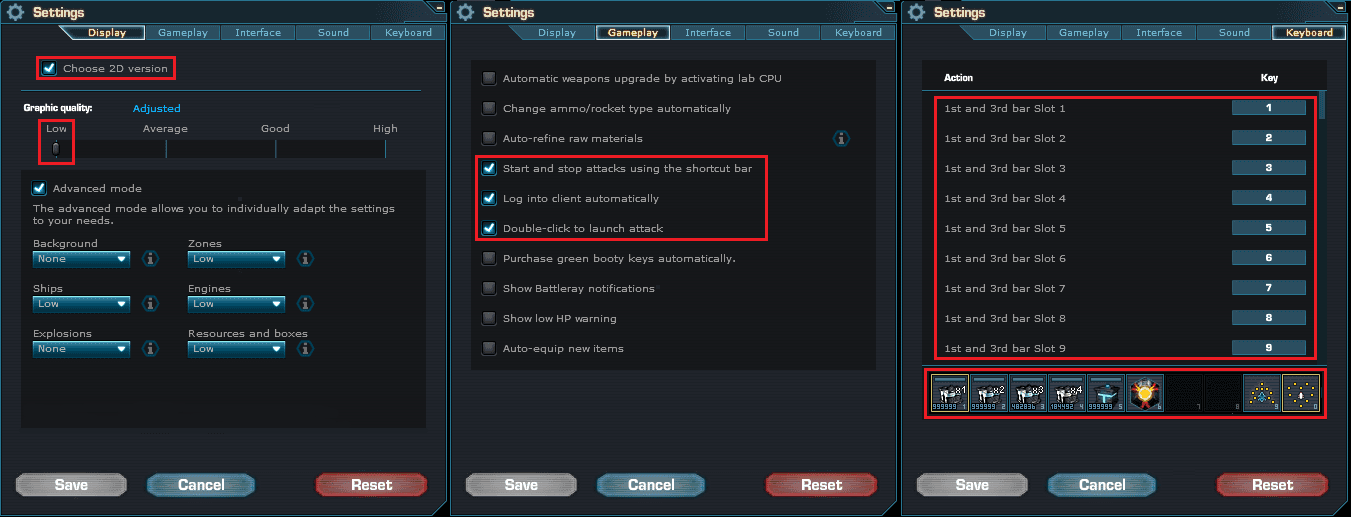
- Enable Double Click to Attack
- Enable Start & Stop attack using shortcut bar keys
- Enable Auto-login
- Make sure you set keybinds properly
- Set graphics to low and 2D Mode, if you have slow (old) PC / VPS or running multiple bots