Getting to know the bot interface
1. Bot window
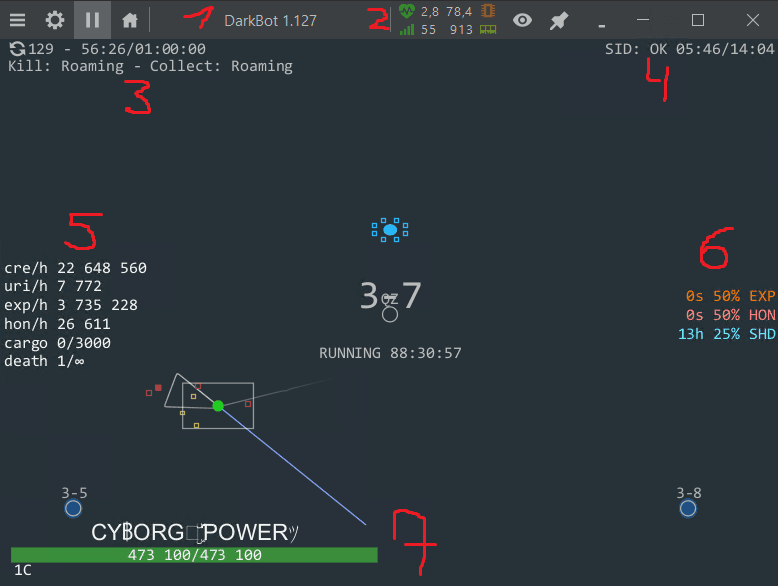
On this window we see (displayed in numbers):
1.1 Bot version;
1.2 Bot performance (when clicked - more detailed information, such as API version, tick time, etc.);
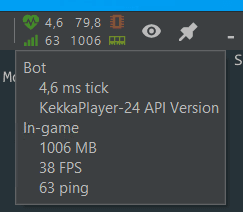
1.3 Number of updates, bot working time, current status (Kill & Collect module is set);
1.4 SID, its status and update time;
1.5 Statistics;
1.6 Current boosters;
1.7 Nickname, amount of HP and shield, config (1c).
2.1 Clicking on the "hamburger" will open the bot menu.
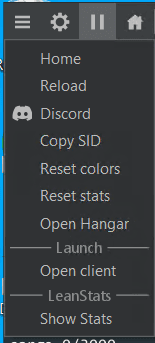
2.2 When you click on the "gear" icon, the bot settings will open.
2.3 The icon in the form of "House" allows you to go to the game page without "breaking" the SID.
3.1 Icon in the form of an "eye" when left clicking the mouse button - hides the game, when RMB - open additional options.
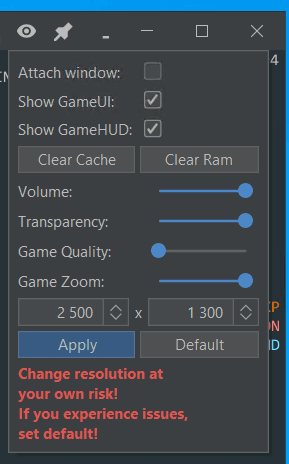
3.1.1 In this window, you can turn down the in-game sound, change the visibility of the window (transparency), the in-game quality of the game, zoom in/out.
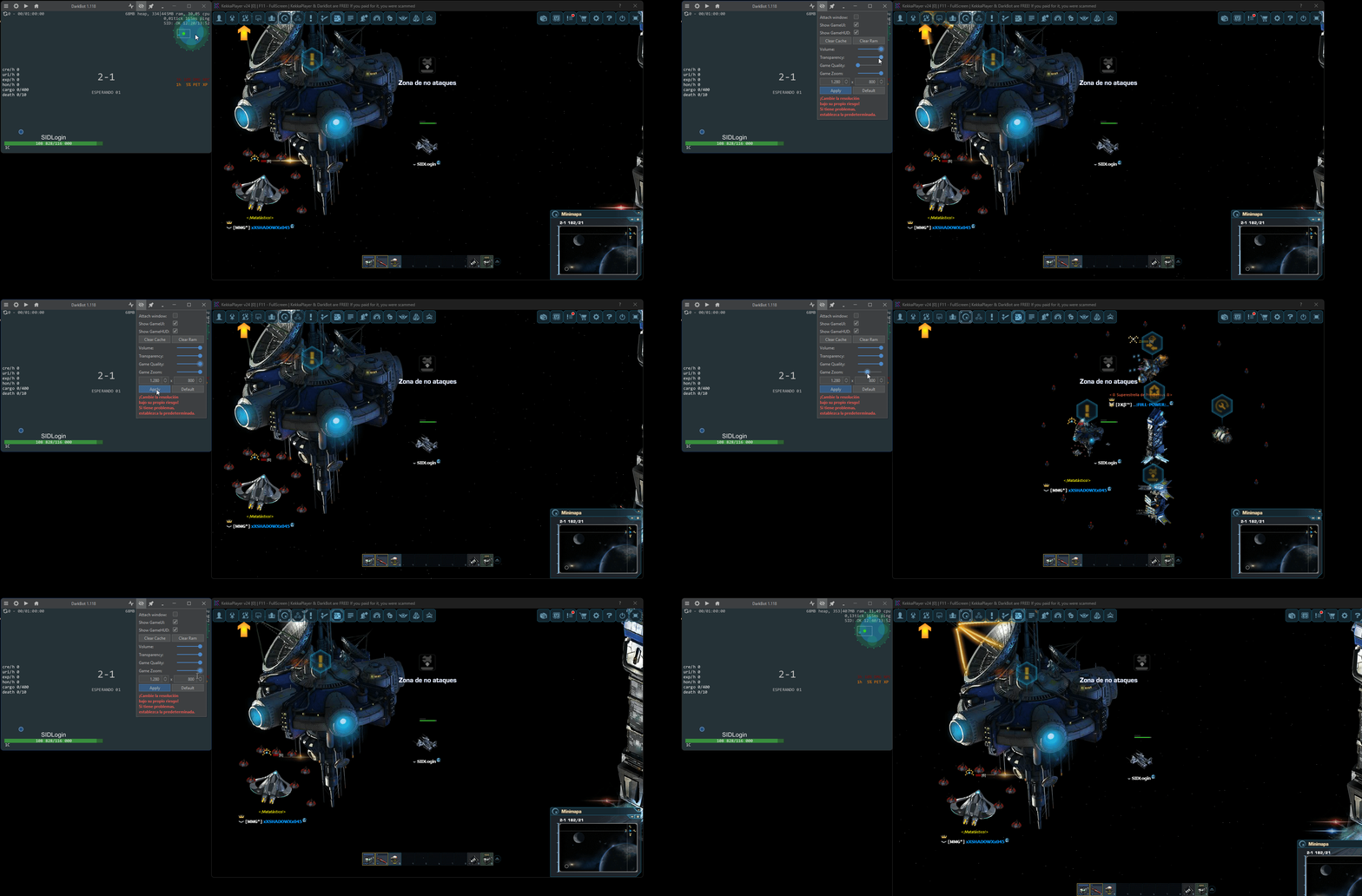
3.1.2 Attach window - the game window is attached to the bot window, i.e. if you move the bot window, then the game window moves with it.
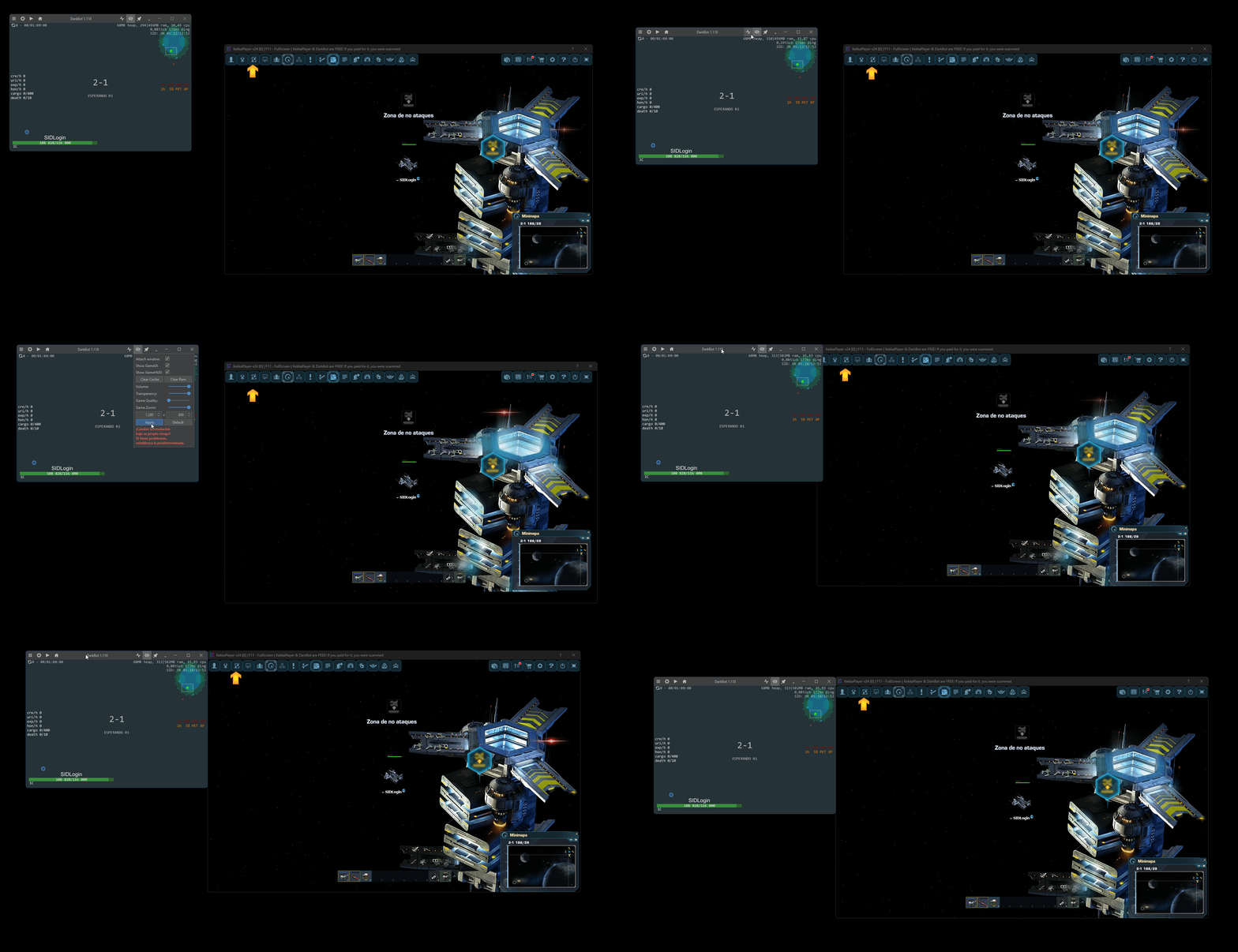
3.1.3 Show GameUI and HUD - show/hide the game interface or HUD.
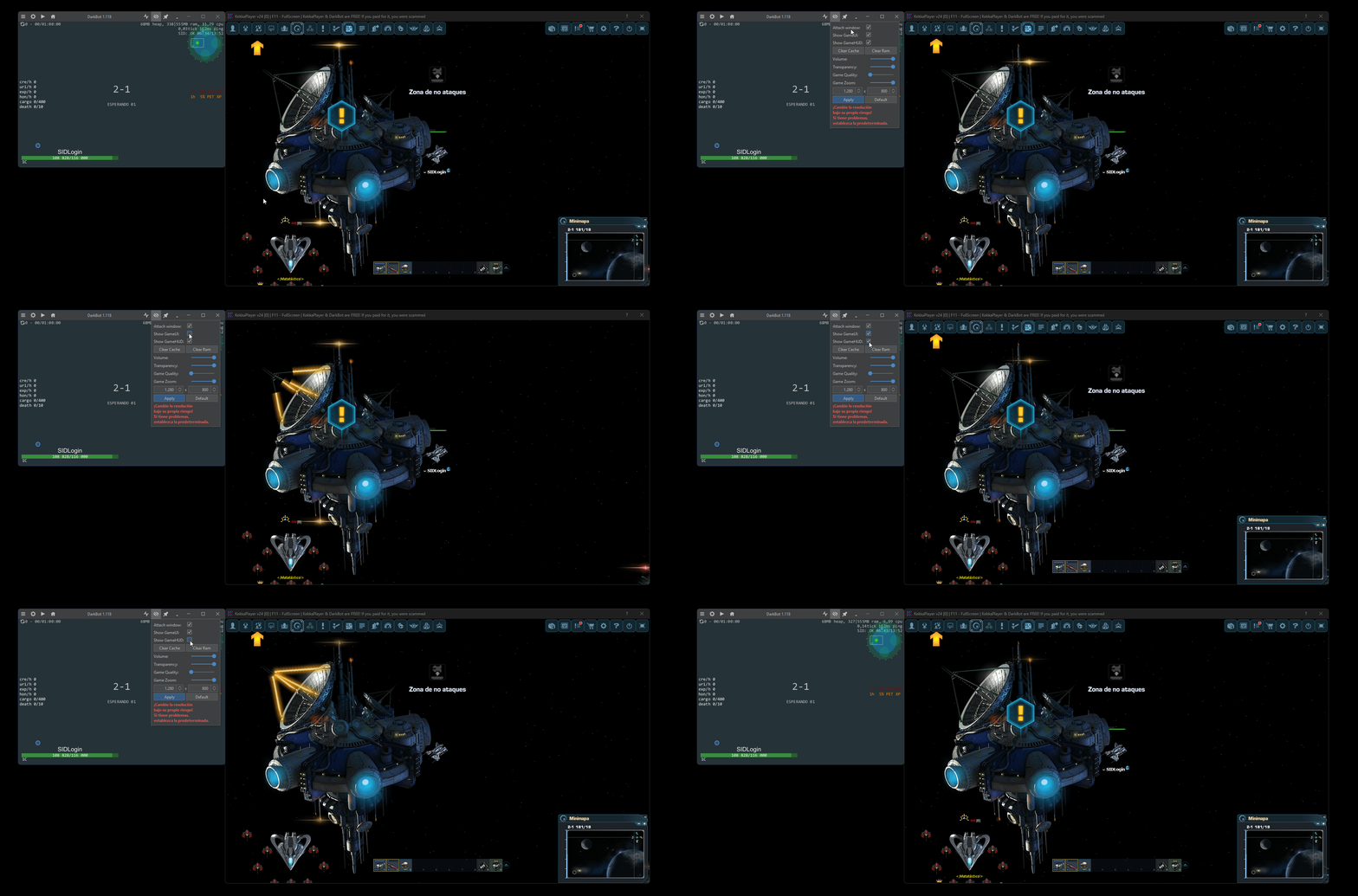
3.2 The "pin" icon allows the window to always be on top of other windows.
3.3 Minimize to tray icon.
3.4 And then there are buttons: Minimize the window, maximize the window, close.